Labs
A lab puts the learner in a realistic situation (an organisation, a role, a triggering event and business constraints), then grades the work automatically with the audit, attack paths and a comparison with the starting domain.
Opening a lab
| How | Content |
|---|---|
| Labs > Built-in labs | five general labs, bilingual |
| Labs > Attack paths | fifteen labs, each in the interface language, with its own domain |
| Labs > Open a lab... | a .smadx-lab.json file received from a trainer, or a .smadx-submission.json submission to resume |
Double-click the file, or SMAD-X.exe lab.smadx-lab.json |
the same file, opened directly in lab mode (see below) |
The full list is in the catalog.
Opening a lab replaces the current domain with the lab's starting domain. Its dates are shifted so that the lab takes place "today": an account that logged on yesterday still did, whatever day the lab is taken.
The lab window
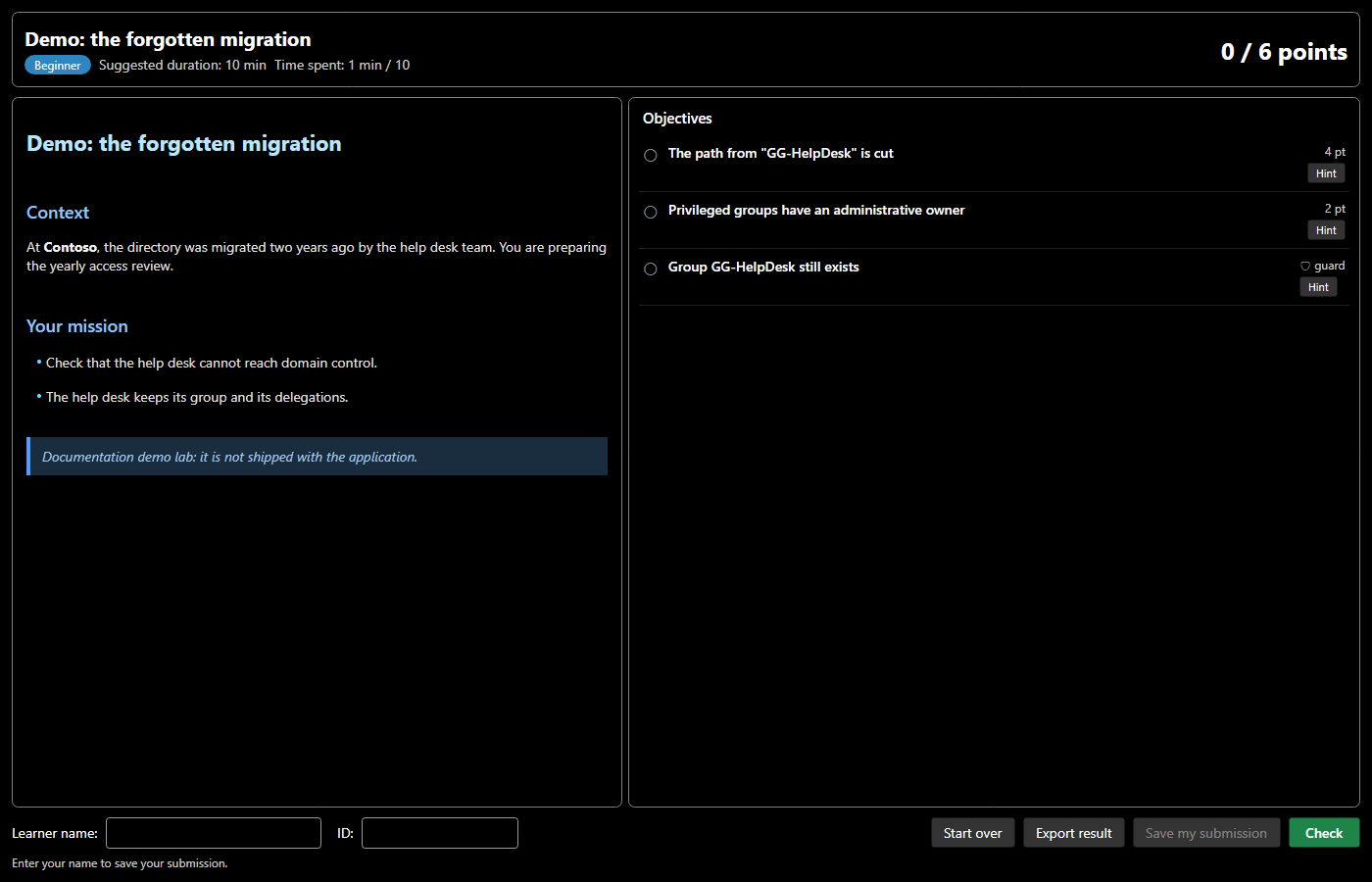
- On the left, the statement: the context, your mission and your tools. It does not give the answer away.
- On the right, the objectives, with their points, then the comprehension questions if there are any: tick a choice, match each item with a proposal from the list, or write your answer.
- Hint reveals a lead for the objective; a hint that was viewed counts, even if hidden again.
- Check grades every objective against the current state of the domain.
- Start over reloads the starting domain.
- Export result produces a Markdown report (objectives, result, hints viewed, learner name).
- Save my submission writes your work to a
.smadx-submission.jsonfile, to hand in to the trainer (see below). Enter your name first; the optional ID (your number or address) lets the trainer report the grade in the school platform or Moodle.
If the window is closed, Labs > Show the lab opens it again.
Grading
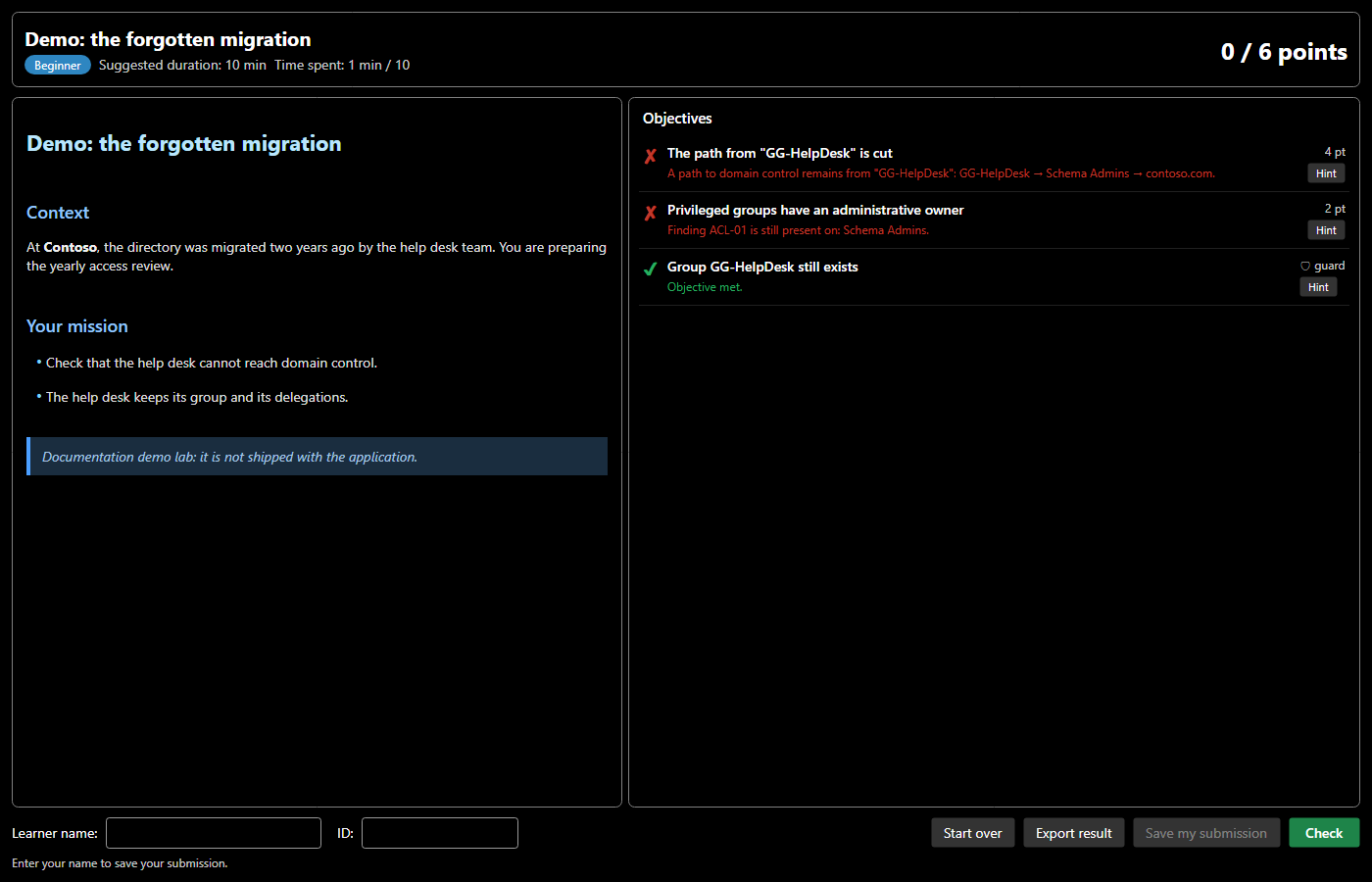
Each objective is an automatic check. An objective that is not met explains what is missing. For an attack path, it shows the remaining path, step by step. An objective with partial credit (◐) already earns the share of the work done: 3 findings cleared out of 4 give 75 % of its points.
The questions are graded with the objectives. A written answer SMAD-X does not recognise is left to the trainer, who will read it.
The screenshots show a demo lab built for this documentation and absent from the application. The solutions of the shipped labs are not published.
Labs also include guards, already met at the start and marked 🛡, which refuse brute-force solutions: deleting the service account, removing the service desk's legitimate delegation, emptying a business group… A guard earns no points. If you break it, the objectives that concerned the protected object no longer count: deleting the vulnerable account does cut the attack path, but it is not a fix.
Lab mode
Opened directly on a lab or a submission (double-click, or file name after SMAD-X.exe), SMAD-X switches to lab mode: the window title names the lab, and the menus keep only what the lab needs. Nothing can replace your domain: New domain, Open, the other labs and their shortcuts (Ctrl+N, Ctrl+O) are disabled, and Ctrl+S saves your submission.
Labs > Leave lab mode brings every menu back. A lab opened from the Labs menu does not switch to lab mode, unless it is an exam.
Saving and handing in your submission
Save my submission (or Labs > Save my submission..., or Ctrl+S in lab mode) writes a lab_First Last.smadx-submission.json file that holds:
- the lab as you received it;
- your domain as you left it;
- your answers to the questions, the hints viewed and the date of your work.
Each save seals the submission: a SHA-256 fingerprint of all its content (name, dates, hints, domain). The domain also carries the mark of your work session, drawn at random when the lab opens. A submission edited by hand, handed in under another name or whose domain comes from a classmate is usually reported to the trainer (see the limits of these checks in SMAD-X Studio). Two identical solutions, each done on its own, are not.
SMAD-X also keeps a recovery copy: every minute in lab mode, and when closing, your unsaved work is written to a SMAD-X folder. If it closes badly (power cut, crash), the next time the lab opens SMAD-X offers to resume that work. Closing SMAD-X with unsaved changes always asks you to save your submission.
Later saves rewrite the same file. To resume later, open the submission: SMAD-X reloads your domain, your answers, your name and your hints. To hand in your work, give the file to the trainer: they grade it in SMAD-X Studio, with their own copy of the lab. The score shown in your window is never reused as is.
Exam mode
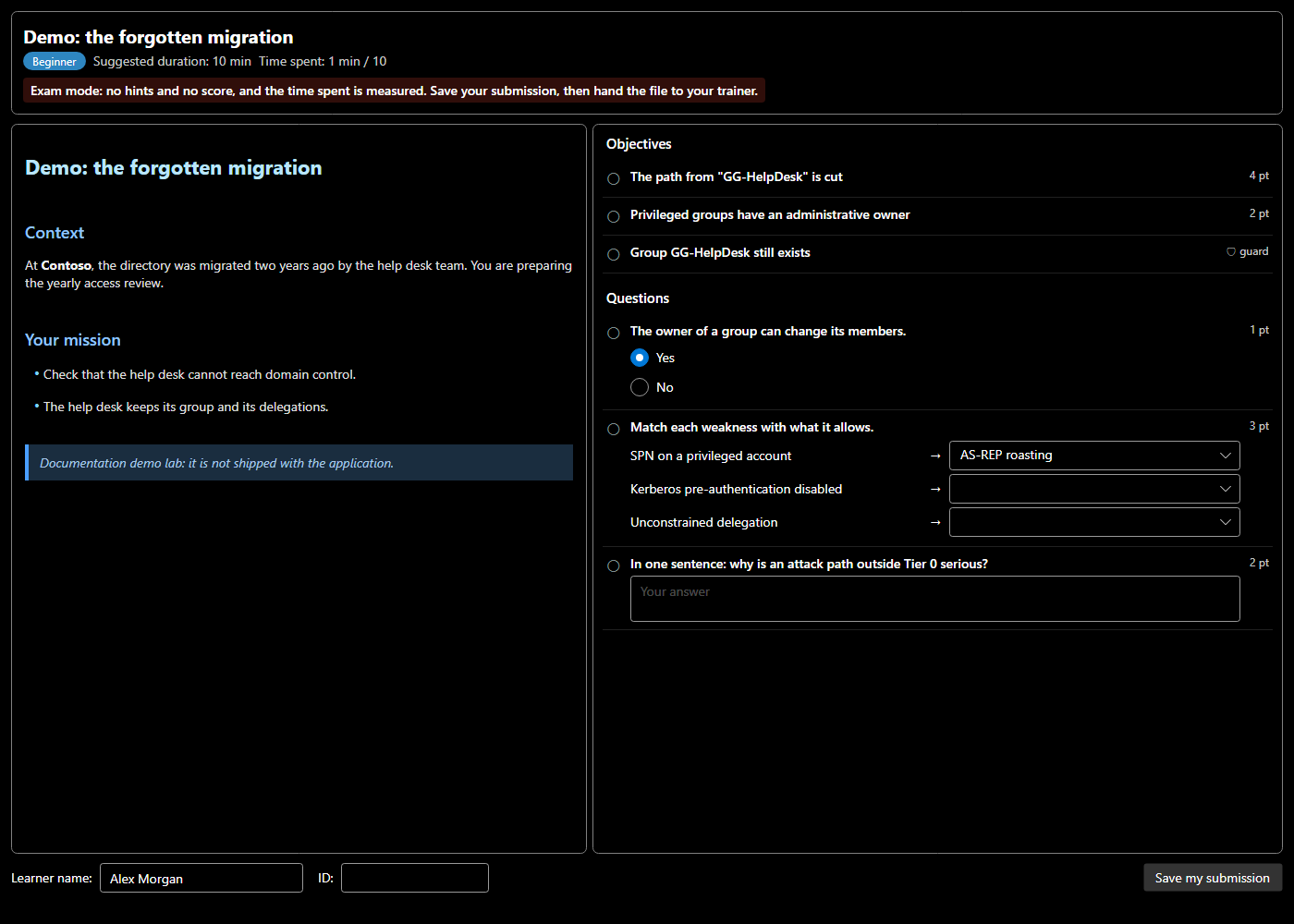
The trainer can mark a lab as an exam in SMAD-X Studio. An exam always opens in lab mode and cannot be left. It has no hints, no score and no Start over: the learner does the work, saves the submission and hands it in. The time spent is shown and written in the submission; going over it blocks nothing, but the trainer sees it.
Depending on the trainer's settings, the Check button shows which objectives are met, with no score and no explanation, and some tools may be closed: security audit, the "How to fix" section of the sheets, attack paths, before / after comparison. By default, everything is open.
The questions of an exam are not graded in SMAD-X: the subject you received has no answer key. Your answers are saved in the submission, and the trainer grades them in SMAD-X Studio. The trainer's own copy, which holds the hints and the answer key, does not open as an exam: SMAD-X explains why and does not open it.
What exam mode guarantees
Exam mode removes the aids and prevents opening another domain from SMAD-X. It is not proctoring software: it locks neither the computer nor other applications.
Writing your own labs
Labs are created and graded in SMAD-X Studio. The guide explains how to prepare a domain in SMAD-X and send it to Studio, or write a lab with the repository's generators.