Policy Analyzer
The Security Compliance Toolkit of
Microsoft comes with Policy Analyzer: it compares sets of GPOs setting by setting, and shows the
settings a set configures twice or with different values. HGPM does the same, on Windows and on
Linux, with the same files: the .PolicyRules files of the security baselines of Microsoft, and
those Policy Analyzer or GPO2PolicyRules.exe made, are read as they are, and the files HGPM
writes open in Policy Analyzer.
The window
Show-PolicyAnalyzerAvalonia opens Policy Analyzer in a window of its own, as the Policy
Analyzer tile of the launcher (Start-HGPM) does. It needs no domain: the GPOs of the domain are
read the first time they are asked for (-Server, else the domain of the computer). The settings
are named with the ADMX files loaded, else those of the central store or of
%windir%\PolicyDefinitions (-PolicyDefinitions elsewhere); without them, a registry value is
shown by its key.
Show-PolicyAnalyzerAvalonia
Show-PolicyAnalyzerAvalonia -Server dc.contoso.com -Path '.\Windows 11 v25H2 Security Baseline\Documentation'
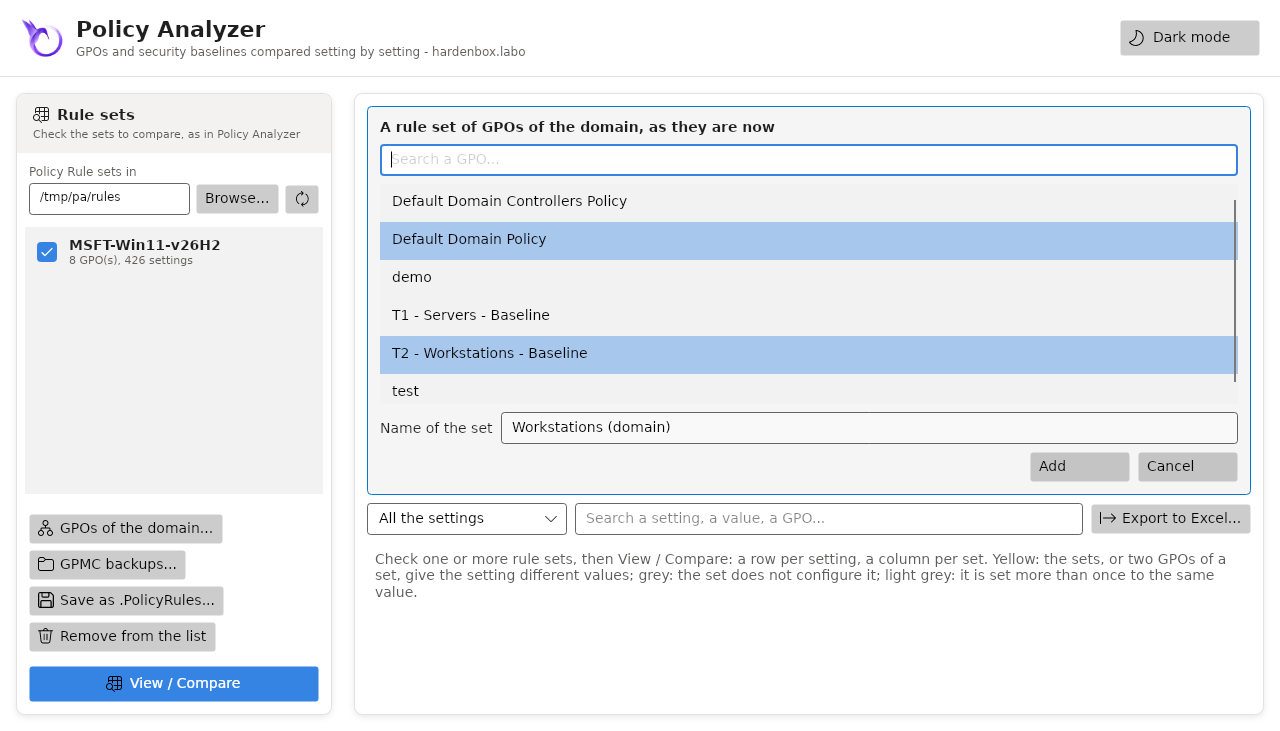
On the left, the rule sets: the .PolicyRules files of the folder
Policy Rule sets in (Documents\PolicyAnalyzer by default, as Policy Analyzer: copy there the
files of the security baselines of Microsoft), and the sets added with GPOs of the domain...
(the GPOs chosen, as they are now) or Backups... (the GPOs folder of a baseline, or the
backups of HGPM: the central ones of Tier 0 at first). Check the sets to compare, then
View / Compare.
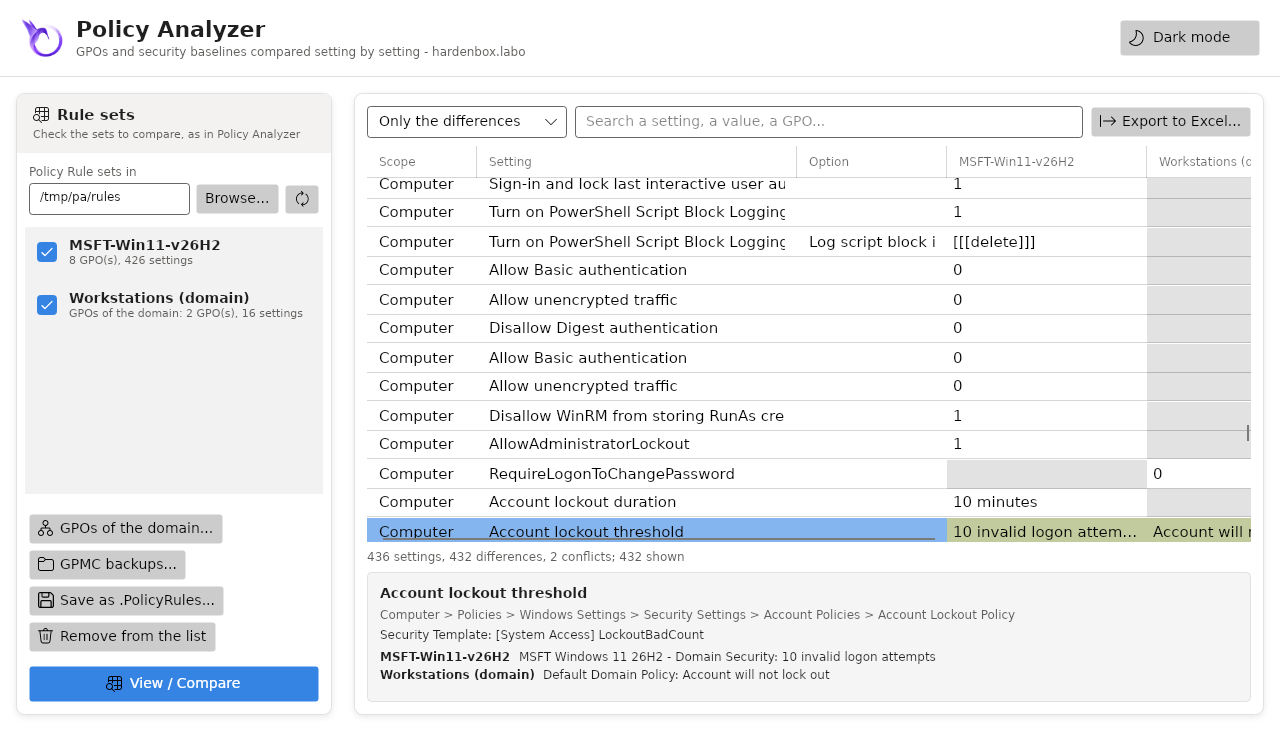
The table has a row per setting and a column per set, with the colours of Policy Analyzer below; its columns are sorted, moved and resized as in Policy Analyzer. Only the differences and Only the conflicts keep the rows of the menu, the search finds a setting, a value or a GPO. Below the table, the selected setting: where GPMC shows it, its registry value or the line of its security template, the value each GPO of each set gives it, and its explanation.
Export to Excel... saves the rows shown as an Excel workbook (All data: with the value of
each GPO and the explanation of each setting); Save as .PolicyRules... saves the selected set
as a file Policy Analyzer and LGPO.exe read, in the folder of the sets by default. A file that
exists is replaced after a second click.
Rule sets
A rule set is the settings of one or more GPOs, as one unit: the registry settings of their
Registry.pol files (computer and user), their security template (GptTmpl.inf: account
policies, user rights, security options, services, restricted groups...), their advanced audit
policy (audit.csv) and their client-side extensions. Group Policy Preferences and scripts are
not part of it, as in Policy Analyzer.
| Rule set from | Command |
|---|---|
.PolicyRules files, or all those of a folder (Documents\PolicyAnalyzer for Policy Analyzer) |
Get-PSGPOPolicyRuleSet -Path |
| GPOs of the domain, as they are now | Get-PSGPOPolicyRuleSet -Name |
| Backups of HGPM | Get-PSGPOBackup ... \| Get-PSGPOPolicyRuleSet |
Backups of GPMC (the GPOs folder of a security baseline) or of HGPM (their folder, a GPO, one backup) |
Get-PSGPOPolicyRuleSet -BackupPath |
| The GPOs that apply to a domain or an OU, by precedence | Get-PSGPOPolicyRuleSet -Container |
| The effective state of this computer for the settings of other sets (Windows only) | Get-PSGPOPolicyRuleSet -EffectiveState |
Export-PSGPOPolicyRuleSet saves sets as a .PolicyRules file, as GPO2PolicyRules.exe writes
it: Policy Analyzer opens it, and LGPO.exe /p applies it to the local policy of a computer.
Several sets are merged in one file, as Merge-PolicyRules.ps1 does.
# The GPOs of the domain that harden the workstations, saved for Policy Analyzer
Get-PSGPOPolicyRuleSet -Name 'Workstations - *' -SetName 'Workstations' |
    Export-PSGPOPolicyRuleSet -Path "$HOME\Documents\PolicyAnalyzer\Workstations.PolicyRules"

# The baseline of Microsoft, from its GPO backups (what its .PolicyRules file holds)
Get-PSGPOPolicyRuleSet -GpmcBackupPath '.\Windows 11 v25H2 Security Baseline\GPOs'
The GPOs of an OU, by precedence
Policy Analyzer does not say which GPO of a set wins. HGPM does for the GPOs that apply to a domain
or an OU: Get-PSGPOPolicyRuleSet -Container, or The GPOs that apply to a domain or an OU, by
precedence in GPOs of the domain... of the window, orders them as the Group Policy
Inheritance tab of GPMC:
- the enforced links first, from the domain down to the OU (the one nearest the domain wins);
- then the other links, from the OU up to the domain, until an OU that blocks the inheritance (its own links included);
- the disabled links, and the GPOs whose settings are all disabled, left out; the computer or user settings a GPO status disables too.
Each setting then shows the value of the GPO of precedence 1 that sets it: two GPOs of the OU that
disagree are not a conflict, the precedence decides (light grey), and the details list each GPO with
its precedence, the one applied first. A **delvals. of a GPO of higher precedence clears the
values of its key the others write, as the client applies them ([[[Delete all values]]]). The
security filtering, the WMI filters and the loopback processing depend on each computer or user:
they are not taken into account, nor the links of the sites.
$baseline = Get-PSGPOPolicyRuleSet -Path .\MSFT-Win11-v25H2.PolicyRules
$laptops = Get-PSGPOPolicyRuleSet -Container 'OU=Laptops,OU=Workstations,DC=contoso,DC=com'
Compare-PSGPOPolicyRuleSet -RuleSet $baseline, $laptops -ConflictOnly
Comparing rule sets
Compare-PSGPOPolicyRuleSet gives a row per setting one of the sets configures, and a column per
set with its value:
| Cell | Meaning | In Excel |
|---|---|---|
| a value | the set configures the setting, once | white, yellow when another set has another value |
| empty | the set does not configure the setting | grey |
| a value, set more than once | two GPOs of the set give the setting the same value | light grey |
***CONFLICT*** |
two GPOs of the set give the setting different values | yellow |
[[[delete]]] |
the GPO deletes the registry value | |
[[[Delete all values]]] |
the GPO deletes all the values of the key (before writing a list) |
A row is a conflict when two sets, or two GPOs of a set, give the setting different values; a
difference when it is a conflict or a set does not configure it (-ConflictOnly,
-DifferenceOnly: "Show only Conflicts" and "Show only Differences" of Policy Analyzer). As in
Policy Analyzer:
- lists whose order does not matter are compared in any order: the accounts of a user right or of
a restricted group, the strings of a
REG_MULTI_SZ; - a
REG_DWORD5 is not aREG_SZ5: the cells then show the type of each value; - the precedence of the GPOs of a set is not taken into account: a set shows that its GPOs disagree, not which one wins.
Each setting is shown as GPMC shows it: the registry values as the policy and option of the
administrative templates loaded with Initialize-PSGPOAdmx (otherwise, and for the values no ADMX
explains, as Extra Registry Settings), the security settings and the audit subcategories by
their names, the accounts by name rather than SID. The row also keeps the setting as Policy
Analyzer lists it (PolicyType: HKLM, HKCU, Security Template, Audit Policy; Group: the key or
the section; Setting), its explanation and, in Cells, the value each GPO gives it.
Initialize-PSGPOAdmx -Path C:\Windows\PolicyDefinitions
$baseline = Get-PSGPOPolicyRuleSet -Path .\MSFT-Win11-v25H2.PolicyRules
$domain = Get-PSGPOPolicyRuleSet -Name 'Workstations - *' -SetName 'Domain'
Compare-PSGPOPolicyRuleSet -RuleSet $baseline, $domain -DifferenceOnly |
    Format-Table Scope, Name, Option, MSFT-Win11-v25H2, Domain
One set alone shows its own conflicts and duplicates: the GPOs applied together that set the same setting.
The effective state of this computer (Windows only)
Windows only
The effective state is the one of the Windows computer HGPM runs on: the button
Compare to effective state is shown on Windows only, and Get-PSGPOPolicyRuleSet
-EffectiveState stops on Linux.
As Compare to Effective State of Policy Analyzer, Compare to effective state compares the sets checked to what this computer, and the user of the session, have now. For each setting of the sets, HGPM reads:
| Settings | Read from | Administrator |
|---|---|---|
| Administrative templates and other registry settings, of the computer and of the user | the registry (HKLM, HKCU) | no |
Security options ([Registry Values]), startup of the services |
the registry | no |
| Account policies, user rights, other security settings | secedit /export (the security database of the computer, where Group Policy applies them) |
yes |
| Advanced audit policy | auditpol /backup |
yes |
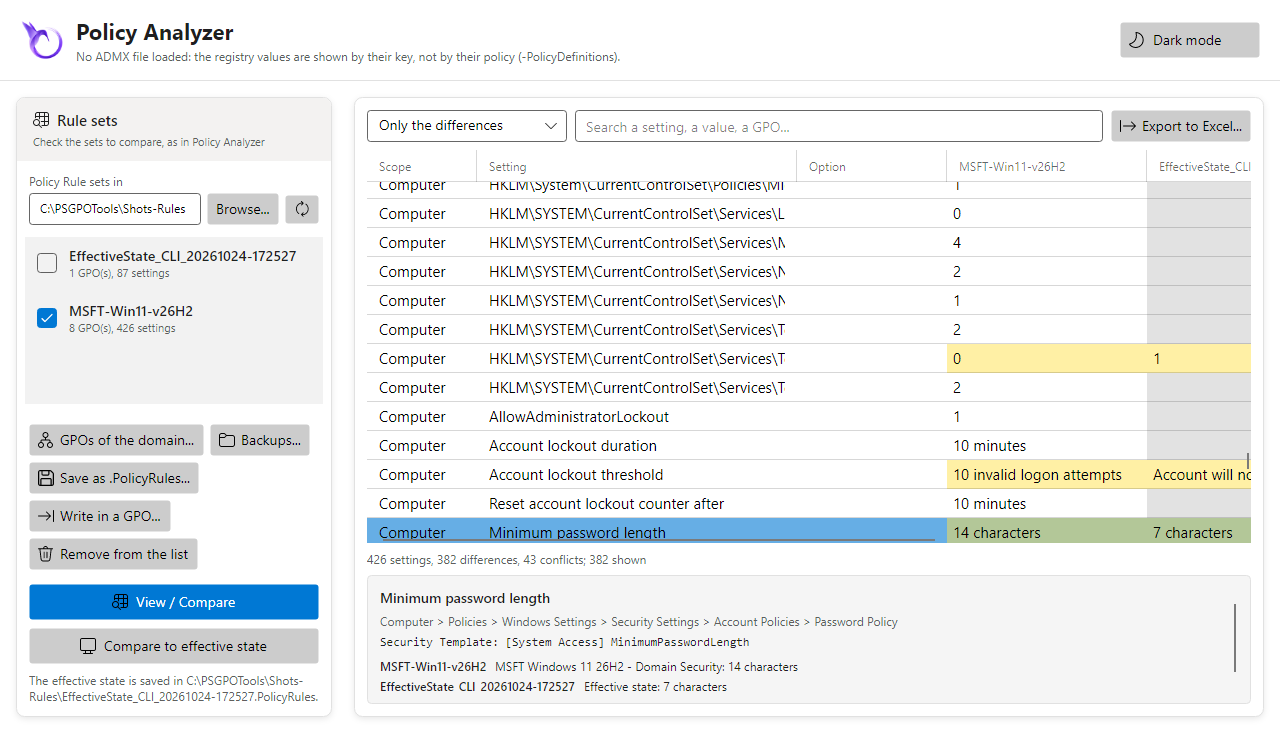
- The effective state is a rule set of its own, a column next to the sets checked: a setting the
computer does not have is empty there (grey), a value deleted is
[[[delete]]], a user right nobody has is empty. - It is saved in the folder of the rule sets as Policy Analyzer saves it,
EffectiveState_<computer>_<yyyyMMdd-HHmmss>.PolicyRules, and listed with the other sets. seceditandauditpolneed PowerShell run as an administrator: without, the registry is read and the window, or a warning of the command, says how many security and audit settings are not.- The user settings are those of the account that runs PowerShell: run as an administrator under another account, they are the ones of that account.
# PowerShell run as an administrator
$baseline = Get-PSGPOPolicyRuleSet -Path .\MSFT-Win11-v25H2.PolicyRules
$state = Get-PSGPOPolicyRuleSet -EffectiveState -RuleSet $baseline
Compare-PSGPOPolicyRuleSet -RuleSet $baseline, $state -DifferenceOnly | Format-Table Name, MSFT-Win11-v25H2, $state.Name
Export-PSGPOPolicyRuleSet -RuleSet $state -Path ".\$($state.Name).PolicyRules"
Writing a rule set in a GPO
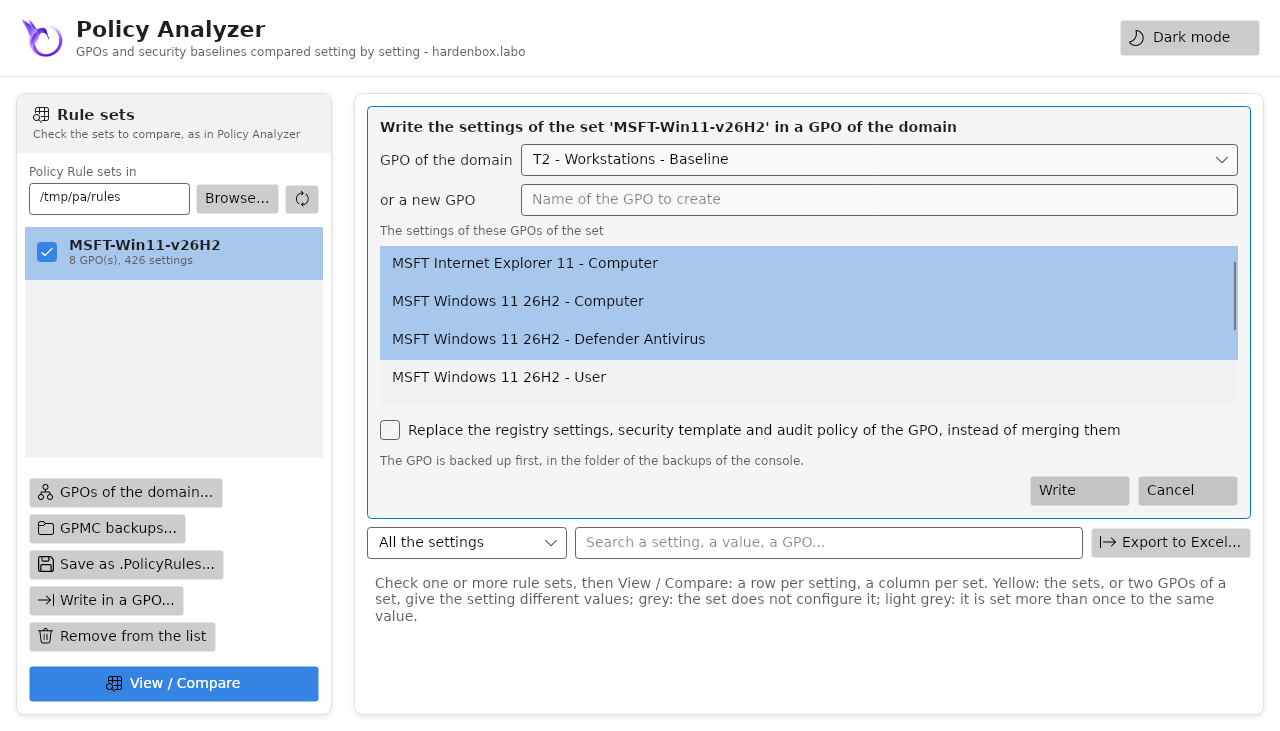
Import-PSGPOPolicyRuleSet writes the settings of a rule set in a GPO of the domain, as
LGPO.exe /p applies a .PolicyRules file to the local policy of a computer, on Active Directory
and Samba AD alike: a security baseline of Microsoft becomes a GPO without its GPMC backups, and
without Windows. In the window, Write in a GPO... does it for the selected set.
- The registry settings go to the
Registry.polfiles of the GPO (computer and user), the security template toGptTmpl.inf, the advanced audit policy toaudit.csv; the GPO declares the client-side extensions they need, those the set lists included (exploit protection, LAPS...), and its version increases. - Merged by default: a setting of the set replaces the same setting of the GPO (a
**delvals.clears the values of its key first, as for a list), the other settings of the GPO stay.-Replace(Replace the registry settings... in the window) leaves only those of the set. - Only the GPOs of the set given (
-PolicyName, the list of the window) are written: a baseline holds GPOs for the computers, the users, the domain controllers... A setting two of them give different values gets the value of the last one, after a warning. - The GPO is backed up first (
-NoBackupskips it), and the change is audited (ImportPolicyRuleSet). Its links, status, permissions, preferences and scripts do not change. - A
REG_DWORD_BIG_ENDIANis not written: Policy Analyzer does not keep its data.
Get-PSGPOPolicyRuleSet -Path .\MSFT-Win11-v25H2.PolicyRules |
    Import-PSGPOPolicyRuleSet -TargetName 'Workstations - Baseline' -PolicyName '*- Computer' -CreateIfNeeded -WhatIf
Excel workbook
Export-PSGPOPolicyRuleComparison saves a comparison as an Excel workbook, written by HGPM
(neither Excel nor any module is needed, on any platform): a sheet Comparison with the colours
above, the header frozen and filters on every column, and a sheet GPOs with the GPOs of each set.
With -All, as "Export all data to Excel", it also has the value of each GPO, the explanation and
the reference of each setting.