Create and link a GPO
Goal: a GPO for the servers of Tier 1, that applies only to the members of a group, linked to
the Tier 1 OU.
In the window
- Right click Tier 1 > Create a GPO in this domain, and Link it here...
- Name it
T1 - Servers - Proxy, choose its GPO status (here Computer settings only), and Start from an empty GPO or a template. - Check Create the security filtering groups:
APPLY_T1 - Servers - ProxyandDENY_T1 - Servers - Proxy, in the container proposed by the configuration. - Create.
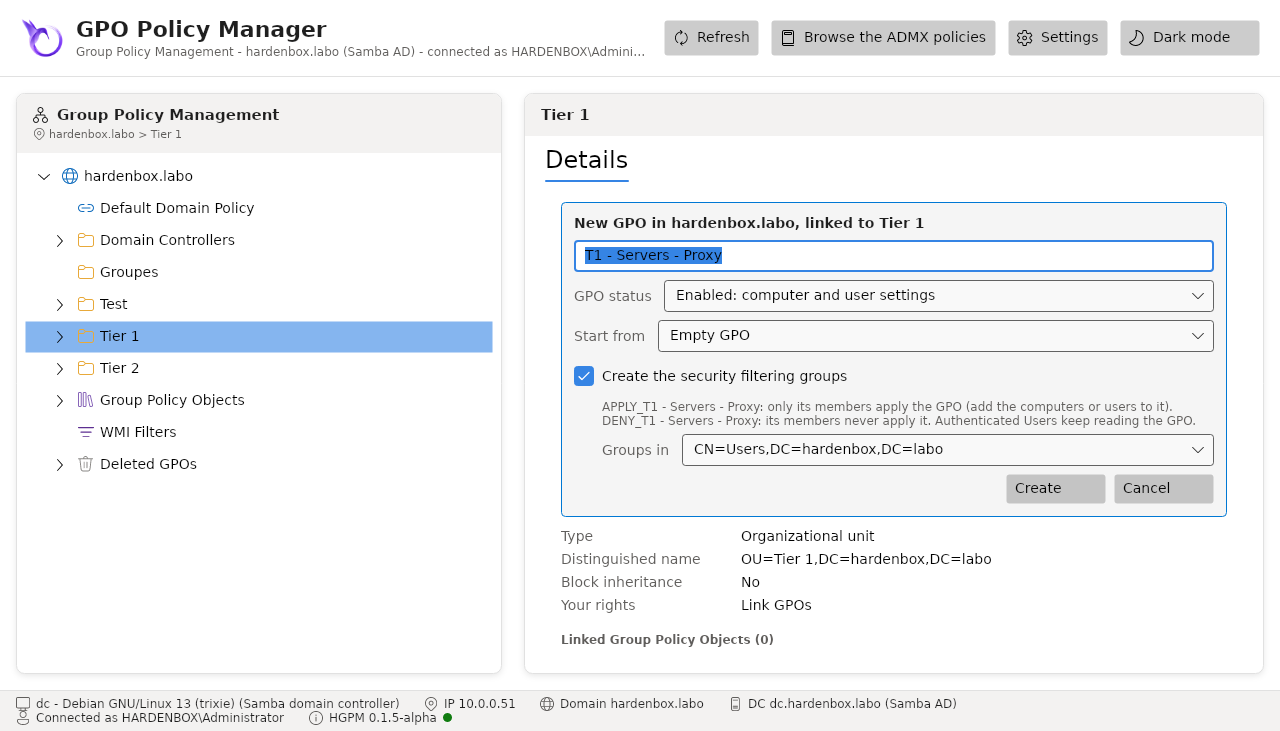
Under the details, the console says what it did: the GPO created, its status, its groups, its link. If the groups could not be created, the GPO is not linked, and the console says why: without its security filtering it would apply to every computer of the OU.
- Add the servers to
APPLY_T1 - Servers - Proxy. - Right click the GPO > Edit, configure its settings, Apply each one.
From the command line
$Directory = Get-PSGPODirectory -Server dc.hardenbox.labo
$Gpo = New-PSGPO -Directory $Directory -Name 'T1 - Servers - Proxy' -Status ComputerOnly
$Groups = $Directory.NewFilteringGroups($Gpo, '')          # the container of the configuration
$Link = $Directory.NewLink($Directory.FindSom('OU=Tier 1,DC=hardenbox,DC=labo'), $Gpo)
Link an existing GPO elsewhere
Right click the domain or an OU > Link an Existing GPO..., search it by name, Link. The
link gets the lowest precedence; to change the order, use GPMC or samba-tool gpo setlink for
now.
Check
- The details of the GPO: its status, Security filtering
APPLY_T1 - Servers - Proxy, Denied toDENY_T1 - Servers - Proxy, its link toTier 1. - On a server of the group:
gpupdate /force, thengpresult /rlists the GPO.