Policy editor
Edit on a GPO opens it in the policy editor. The banner says which GPO is edited; each setting is read from the GPO, and Apply saves it there.
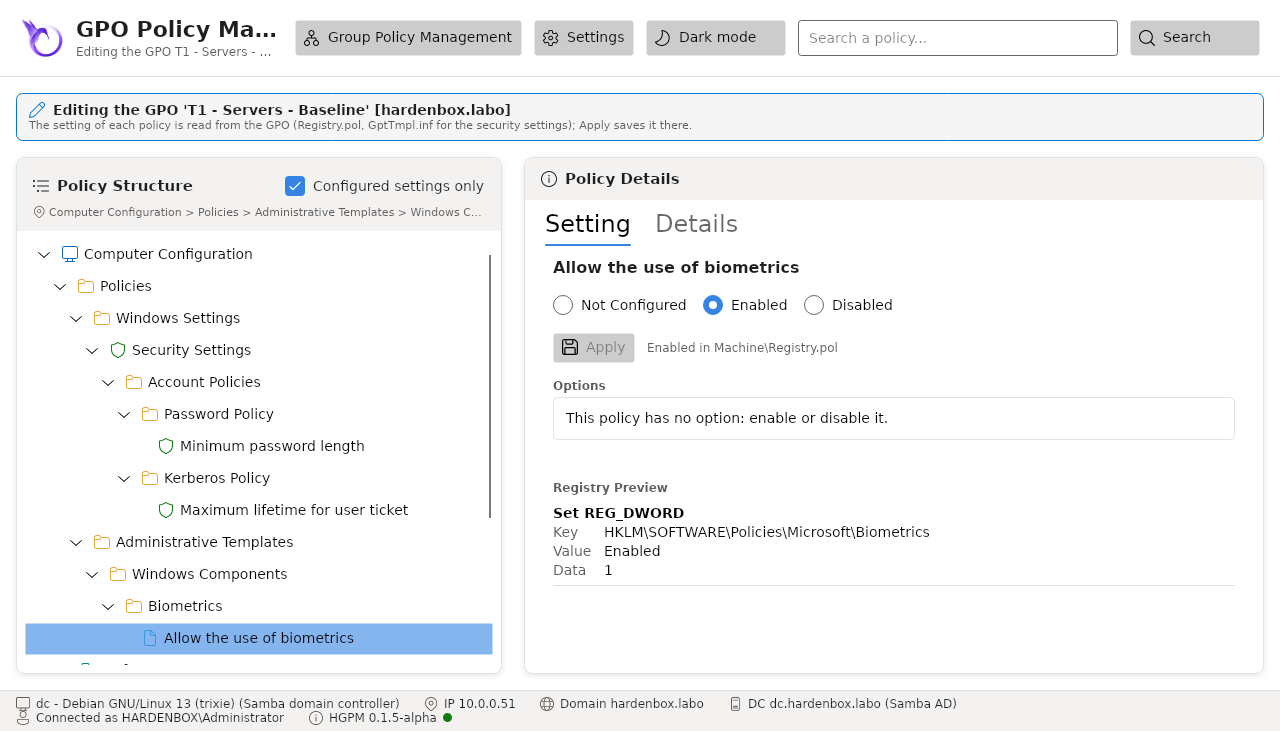
The tree is that of the Group Policy editor: Computer Configuration and User Configuration, each with:
- Policies:
- Windows Settings > Security Settings (computer): the security settings of
GptTmpl.inf; - Administrative Templates: the policies of the ADMX files loaded, by category;
- Windows Settings > Security Settings (computer): the security settings of
- Preferences: the Group Policy Preferences.
Configured settings only keeps only what the GPO configures: the quickest way to read a GPO.
Administrative templates
A policy has three states, as in the Group Policy editor of Windows: Not configured, Enabled, Disabled. Its options come from its ADMX presentation, in the order of the ADML:
| ADMX element | Form |
|---|---|
boolean |
check box |
enum |
drop-down list (the ADML default when nothing is chosen) |
decimal, longDecimal |
number, with its bounds |
text |
text, required or not, with its maximum length |
multiText |
several lines (REG_MULTI_SZ) |
list |
name/value list, with valuePrefix, additive and explicitValue |
The Registry Preview shows what Apply writes: the key, the value, its type and its data. The Details tab shows the explanation of the policy, its supported platforms and its ADMX file.
Apply writes Machine\Registry.pol or User\Registry.pol in SYSVOL, then:
- increases the version of the GPO for that scope, in
GPT.INIand in theversionNumberof its container, so that the computers apply it again; - declares the client-side extension of the administrative templates (and its tool) in
gPCMachineExtensionNames/gPCUserExtensionNames, without which the computers would ignore the file.
The values no policy of the loaded ADMX explains are kept, and shown as Extra Registry Settings in the Settings tab.
A GPO changed since the console read it
Apply writes the whole file, from the copy read with the GPO. If the version of the GPO in the domain is no longer the one the console read (another console, GPMC, a script changed it), nothing is written: the other changes would be lost without a word. Refresh (F5) to read the GPO as it is, then make the change again. GPMC overwrites the file in that case.
Security settings
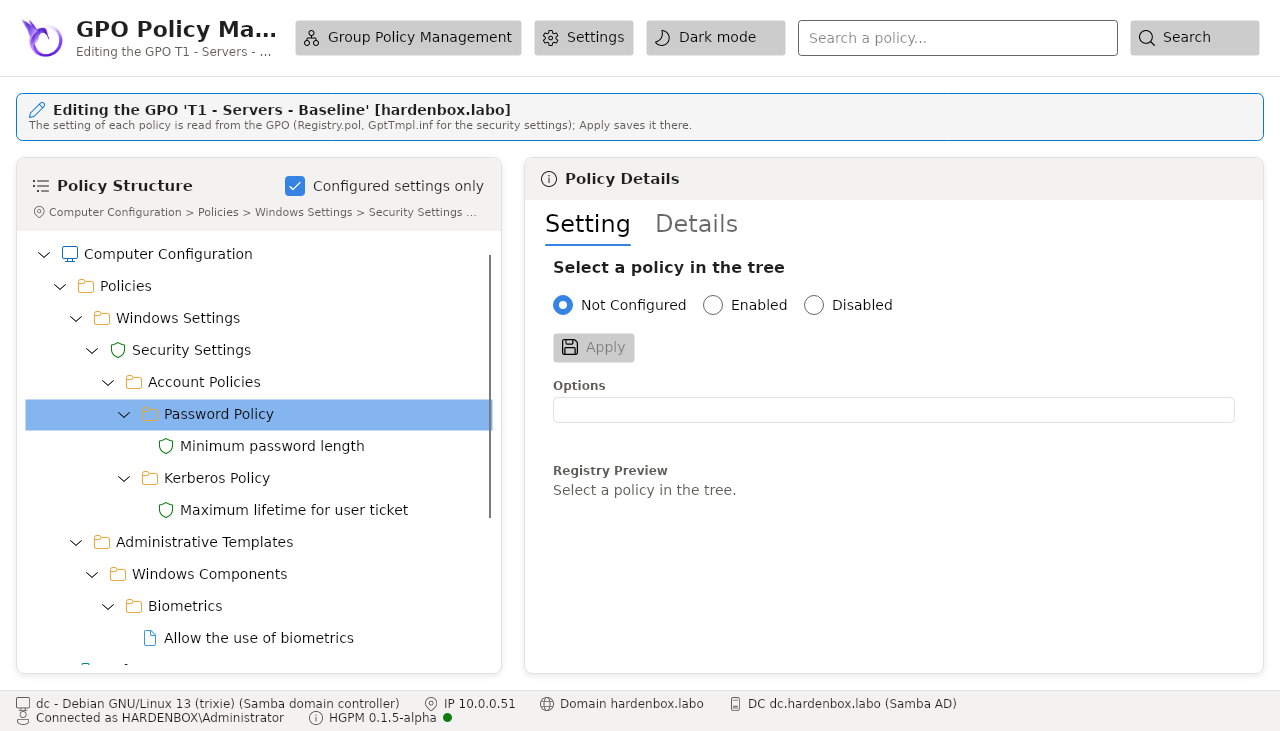
189 settings of Machine\Microsoft\Windows NT\SecEdit\GptTmpl.inf, as the Windows editor groups
them:
| Group | Section of GptTmpl.inf | Settings |
|---|---|---|
| Account Policies > Password Policy, Account Lockout Policy | [System Access] |
15 |
| Account Policies > Kerberos Policy | [Kerberos Policy] |
5 |
| Local Policies > Audit Policy | [Event Audit] |
9 |
| Local Policies > User Rights Assignment | [Privilege Rights] |
45 |
| Local Policies > Security Options | [Registry Values] |
103 |
| Event Log | [Application Log], [Security Log], [System Log] |
12 |
Each has its kind (number with its bounds and unit, choice, text, accounts for the user rights),
and a link to its Microsoft documentation. Apply writes GptTmpl.inf (UTF-16, as Windows writes
it), increases the computer version and declares the security extension.
Restricted groups
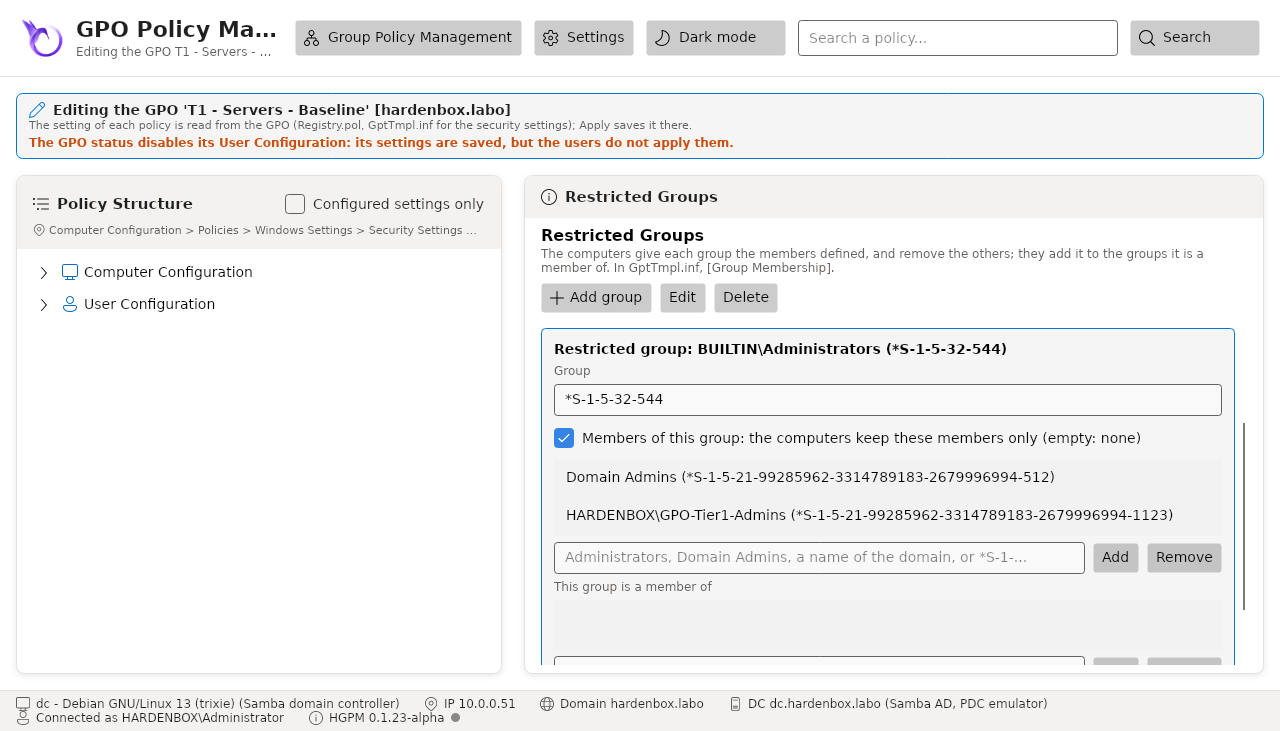
Security Settings > Restricted Groups lists the groups of [Group Membership] in
GptTmpl.inf. Add group gives the group (DOMAIN\name, or a SID such as *S-1-5-32-544 for
the local Administrators), then:
- Members of this group: the computers give the group these members only, and remove the
others; an empty list removes every member. Unchecked, its members do not change (no
__Memberskey); - This group is a member of: the groups the computers add it to.
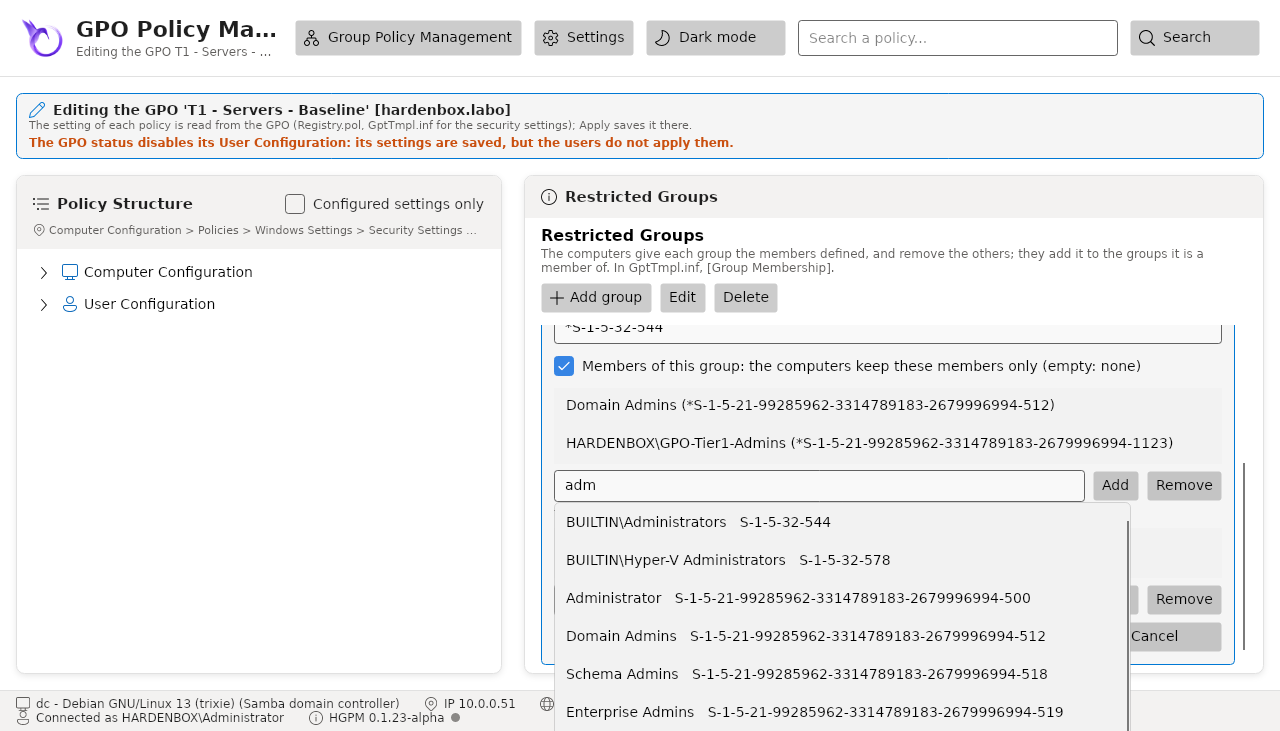
Each list shows its accounts by their name and their SID, as GPMC. Type an account in the box below the list (suggested while typing), then Add (or Enter); Remove takes the selected one out. An account typed and not added stops the save, and is named.
Edit and Delete change or remove a group; a deleted group keeps the members it has. The Settings tab lists them (Members, Member of). Checked on a Windows member: the local Remote Desktop Users received exactly the members defined.
A difference with GPMC
For a restricted group, GPMC always writes the list of its members: an empty list then removes
every member of the group. In the console, Members of this group is checked by default:
the same behaviour. Unchecked, the __Members key is not written and the current members of
the group are not touched; only This group is a member of applies.
Accounts and SIDs
Wherever an account is typed, the console suggests while typing:
- the well-known accounts of every computer (
BUILTIN\Administrators,NT AUTHORITY\Authenticated Users...) and of every domain (Domain Admins, Enterprise Admins, Key Admins..., with the SID of the domain read), found by their English or French name or by their SID (the table); - then the accounts of the domain (users, groups, computers) whose name begins with what is typed.
The names that begin with what is typed come first. In GptTmpl.inf (a restricted group, its
members, the accounts of a user right), the account is written as its SID, *S-1-5-32-544, as
GPMC does: the same on every computer, whatever its language, and shown with its name. In a
restricted group, the box below each list adds the account to it. In the delegation, the security
filtering and the approval of a GPO, the account is written by its name.
A name typed is found in English or French (Admins du domaine, BUILTIN\Administrateurs), and a
well-known account of the domain by its RID when the domain names it in another language: the
default roles of the configuration (Domain Admins) work on a French domain controller. The
commands complete the well-known accounts with Tab: Approve-PSGPO -ApplyTo and -DenyTo,
Set-PSGPOPermission -Account, Set-PSGPOWmiFilterPermission -Account.
Public key policies
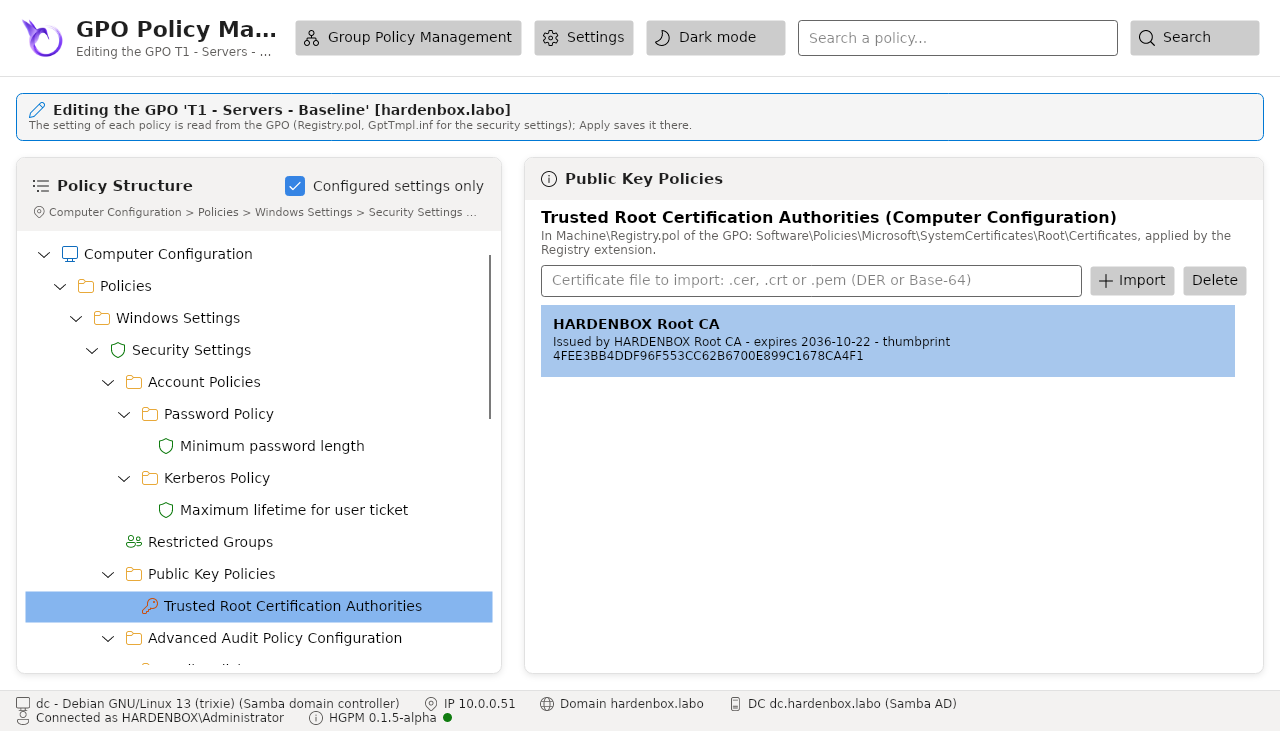
Security Settings > Public Key Policies has the certificate stores of the Group Policy editor: for the computers, Encrypting File System, BitLocker Drive Encryption, BitLocker Drive Encryption Network Unlock Certificate, Trusted Root Certification Authorities, Enterprise Trust, Intermediate Certification Authorities, Trusted Publishers, Untrusted Certificates, Third-Party Root Certification Authorities and Trusted People; for the users, Enterprise Trust and Trusted People.
A store lists its certificates (subject, issuer, expiry, thumbprint). Import adds a certificate
file (.cer, .crt or .pem, DER or Base-64), Delete removes one. They are values of the
Registry.pol of the scope (Software\Policies\Microsoft\SystemCertificates\<store>\Certificates\<thumbprint>,
value Blob), as [MS-GPEF] describes them; the Registry extension applies them, declared with the
tool of the certificates as GPMC does. The recovery agents of Encrypting File System also make
the EFSBlob of EFS, rebuilt at each change ([MS-GPEF] 2.2.1.2). BitLocker takes its data recovery
agents from BitLocker Drive Encryption (with the policy that gives the identifiers of the
organization).
Checked on a Windows member: the root certification authority is in the Group Policy store of the
computer (certutil -grouppolicy -store Root), the EFS recovery agent in its EFS store, and the
EFSBlob of the registry is the one written.
The formats come from the specification of Microsoft: [MS-GPEF] Message Syntax (EFS Recovery Policy, Certificate BLOB, EfsBlob, EfsKey).
Advanced audit policy
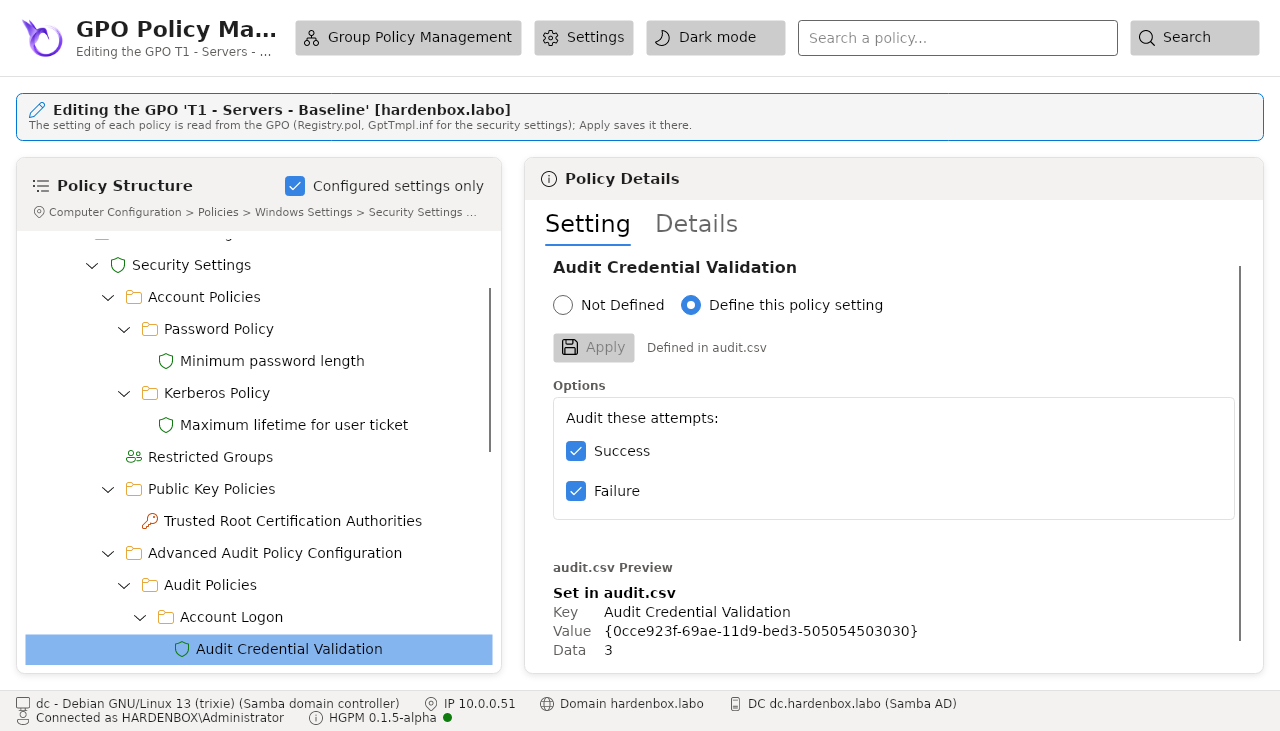
Security Settings > Advanced Audit Policy Configuration > Audit Policies has the 60
subcategories of Windows (as auditpol /list /subcategory:* gives them), in their 9 categories
(Account Logon, Account Management, Detailed Tracking, DS Access, Logon/Logoff, Object Access,
Policy Change, Privilege Use, System). Each one is not defined, or audits its successes, its
failures, both, or nothing (No Auditing). Apply writes Machine\Microsoft\Windows NT\Audit\audit.csv
as the Group Policy editor does, increases the computer version and declares the extension of
the advanced audit policy (Audit Policy Configuration): Windows applies it at the next refresh
(checked with auditpol /get on a Windows member). The lines of audit.csv the console does not
edit (audit options, global object access auditing) are kept as they are.
Do not mix it with Local Policies > Audit Policy in the same domain: as Microsoft documents it, a computer then applies one or the other.
Scripts
Windows Settings > Scripts (Startup/Shutdown) of the computer and Scripts (Logon/Logoff) of
the user, first as in the Group Policy editor: a node per kind, its scripts in their order, those of
scripts.ini (batch files, programs, VBScript) then the Windows PowerShell scripts of
psscripts.ini ([MS-GPSCR]). A startup or shutdown script runs as SYSTEM on each computer the GPO
applies to; a logon or logoff script with the rights of the user.
- Add script / Edit: its type, its name and its parameters. A name alone is a file of the
folder of the scripts of the GPO (
Machine\Scripts\Startup); a path (\\server\share\script.cmd,C:\...) runs from there. Copy a file of this computer into the GPO puts the file there, under the name of the script. - Move up / Move down: the order of the scripts of a type; PowerShell scripts: run first /
run last the order of the two types (
[ScriptsConfig]ofpsscripts.ini). - The selected script shows its file in the GPO, its size, its SHA-256 and its content: what the computers will run.
- Delete: the computers stop running it; its file stays in the folder of the GPO (the Settings tab lists it, Not run).
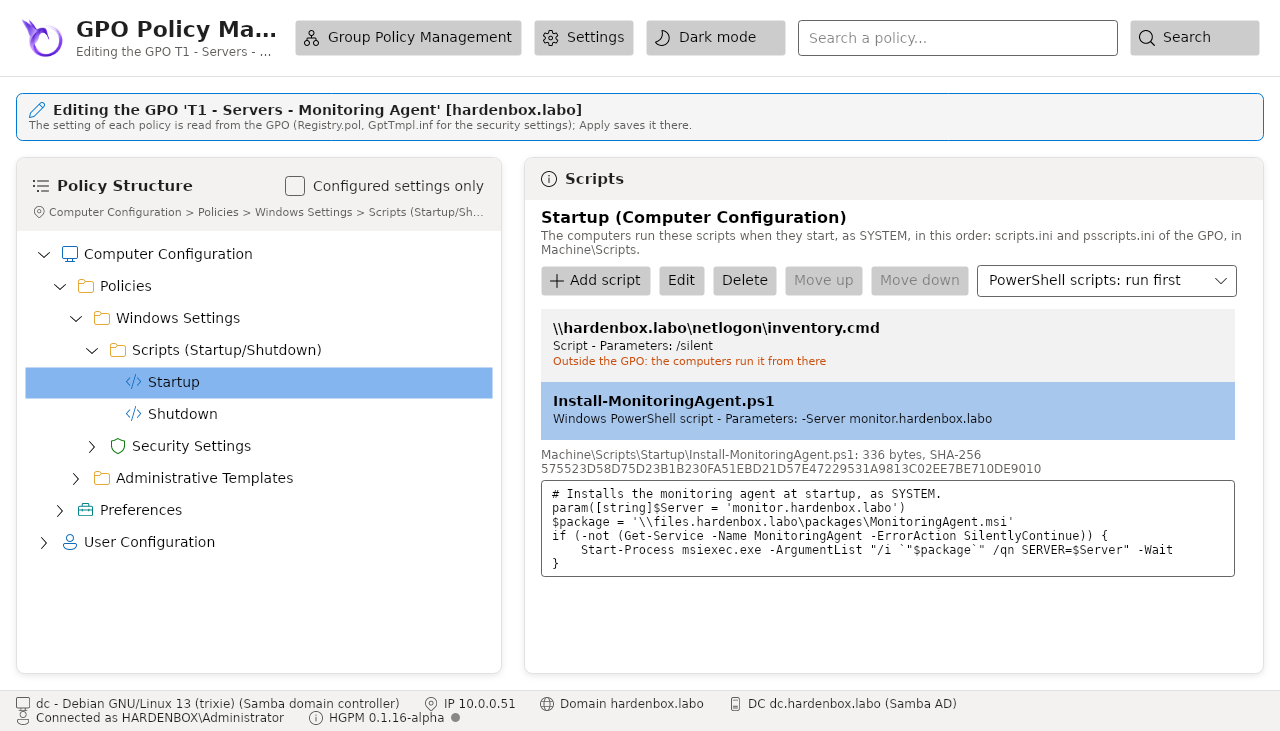
Each change writes scripts.ini, psscripts.ini and the file copied as the Group Policy editor
writes them (UTF-16), with one increase of the version, and declares the extension of the scripts.
Checked on both labs: the Windows member registers the startup scripts in their order, and GPMC
reads them (hardening).
Search and copy
The search box finds the policies whose name holds the text typed (with Configured settings
only, among those the GPO configures). The context menu of a policy copies its name, its
registry path, or the Get-ItemProperty command that reads its value on a computer.