Password policies of the tiers
Goal: the administrators of the tiers get stronger passwords than the other users, with fine-grained
password policies (PSO), and you check which one applies to each account. As it runs in the
lab: the groups GPO-Tier1-Admins (user tiers1) and GPO-Tier2-Admins
(user tiers2) of its scripts, on the Samba AD domain hardenbox.labo.
| PSO | Precedence | Applies to | Settings |
|---|---|---|---|
| PSO - Tier 1 Admins | 10 | GPO-Tier1-Admins |
16 characters, expires after 180 days, locked out 30 minutes after 10 attempts |
| PSO - Tier 2 Admins | 20 | GPO-Tier2-Admins |
14 characters, expires after 90 days, locked out until unlocked after 10 attempts |
| PSO - Domain Users | 50 | Domain Users |
12 characters, history 12 |
tiers1 is in GPO-Tier1-Admins and in Domain Users (its primary group): two PSOs concern it, the
one of precedence 10 applies.
flowchart LR
    open[Open the console] --> new[New PSO]
    new --> apply[Directly Applies To]
    apply --> list[Order of priority]
    list --> resultant[Resultant settings of an account]
    resultant --> check{The expected PSO?}
    check -- no --> list
1. Open the console
An administrator of the domain (by default, only they read and change the PSOs):
kinit administrator@HARDENBOX.LABO     # Linux; Windows: the session of the administrator
Show-PSOManagerAvalonia -Server dc.hardenbox.labo
The domain has no PSO yet: every user gets the default domain password policy, shown under the list.
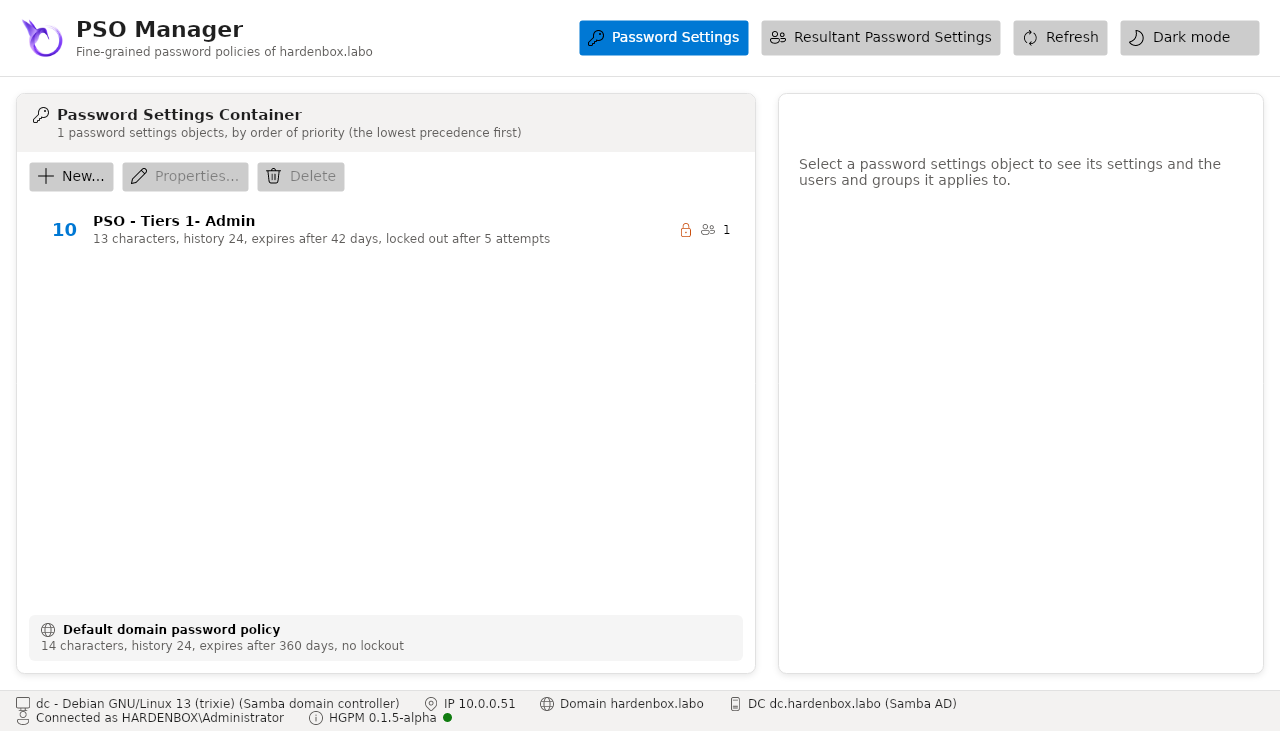
2. Create the PSO of Tier 1
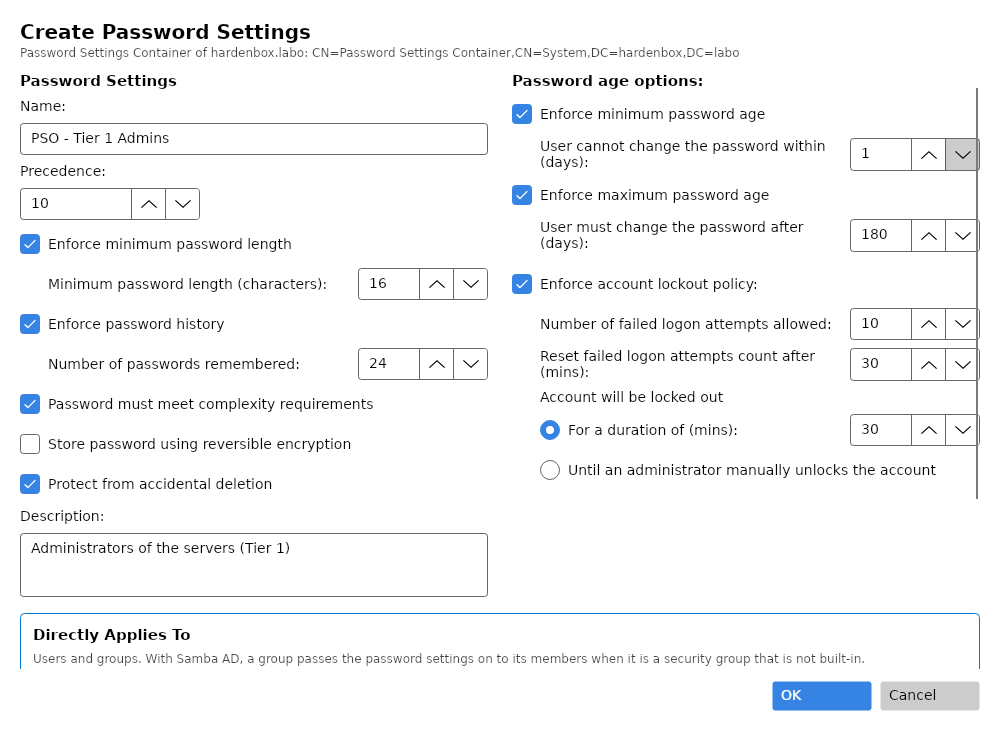
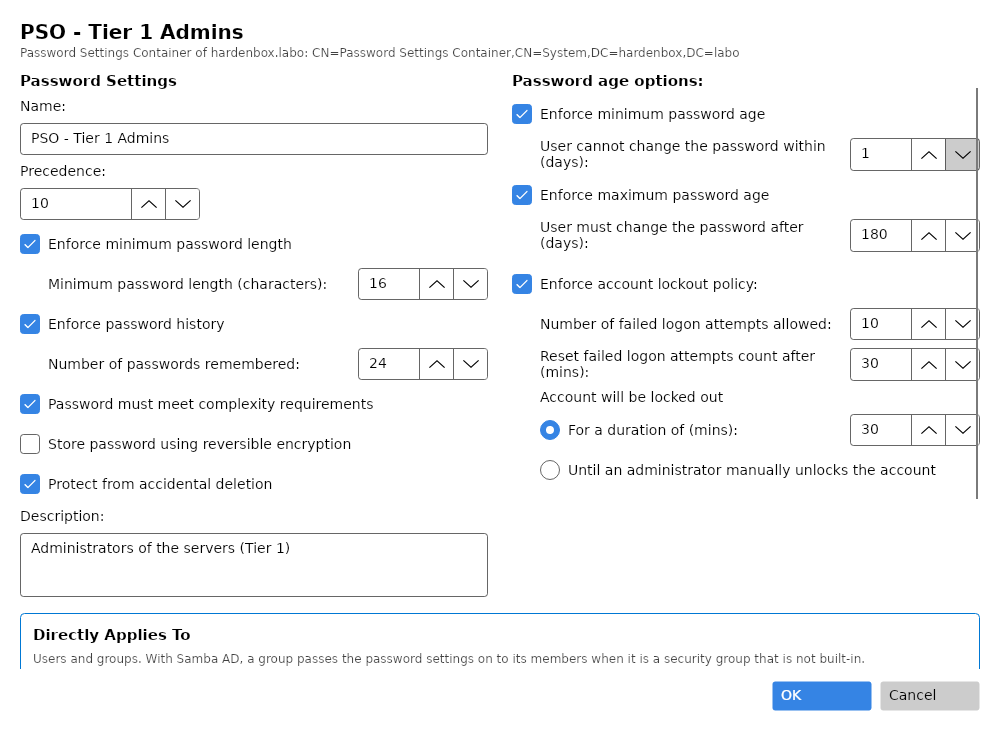
New... opens the window of a new PSO, with the settings of the Administrative Center (7 characters, 24 passwords remembered, complexity, 1 day minimum and 42 days maximum age, protected from accidental deletion):
- Name
PSO - Tier 1 Admins, Precedence10. - Minimum password length
16. - User must change the password after (days)
180. - Check Enforce account lockout policy:
10failed attempts, reset after30minutes, locked out30minutes. - Description
Administrators of the servers (Tier 1).
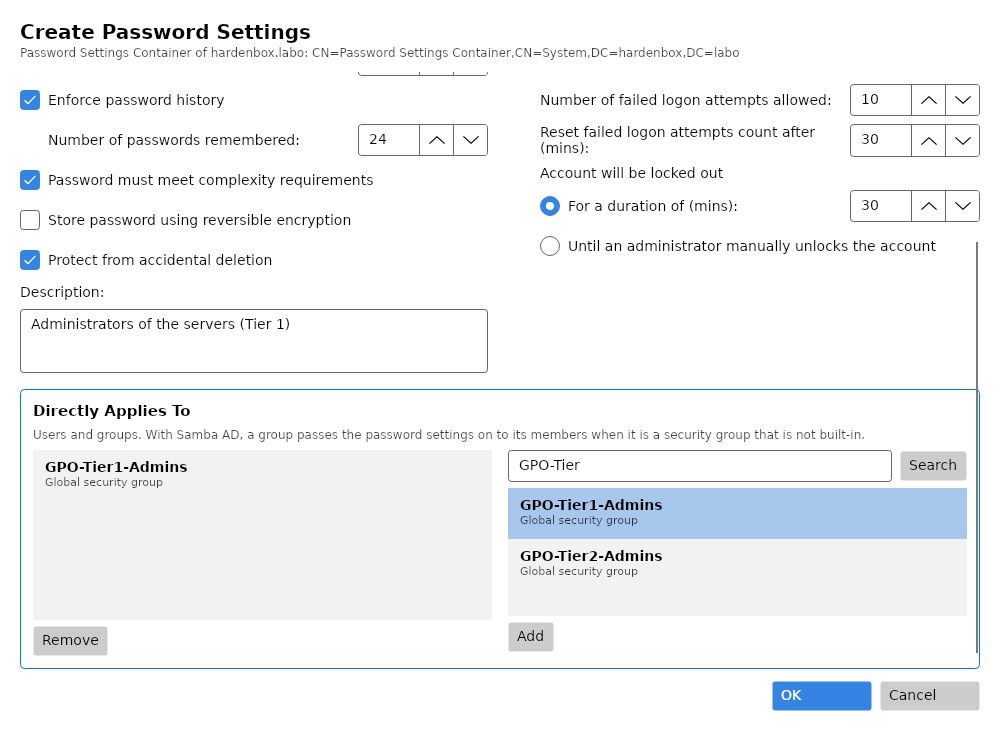
Under Directly Applies To, search GPO-Tier, select GPO-Tier1-Admins, Add: the PSO applies
to the members of the group. The window says which groups pass a PSO on: on Samba AD, every security
group but the built-in ones; on Windows, the global security groups only.
Samba AD and Windows do not apply the same PSO
A PSO applied to a domain local or universal security group applies to its members on a Samba AD domain, and to nobody on a Windows domain. The same groups and the same PSOs can then give another password policy to the same user, for instance after a migration from Samba AD to Windows, or with Windows and Samba domain controllers side by side.
- Apply the PSOs to users, or to global security groups: both domain controllers pass them on.
- Check the result in Resultant Password Settings: the PSO in the frame is the one the domain controller you read applies; a PSO Ignored reaches the account through a group that does not pass it on there.
On the Windows domain powershell.labo of the lab, a PSO of precedence 5 applied to the domain
local group VPN Users is ignored for tiers1, its member: the PSO of its global group applies.
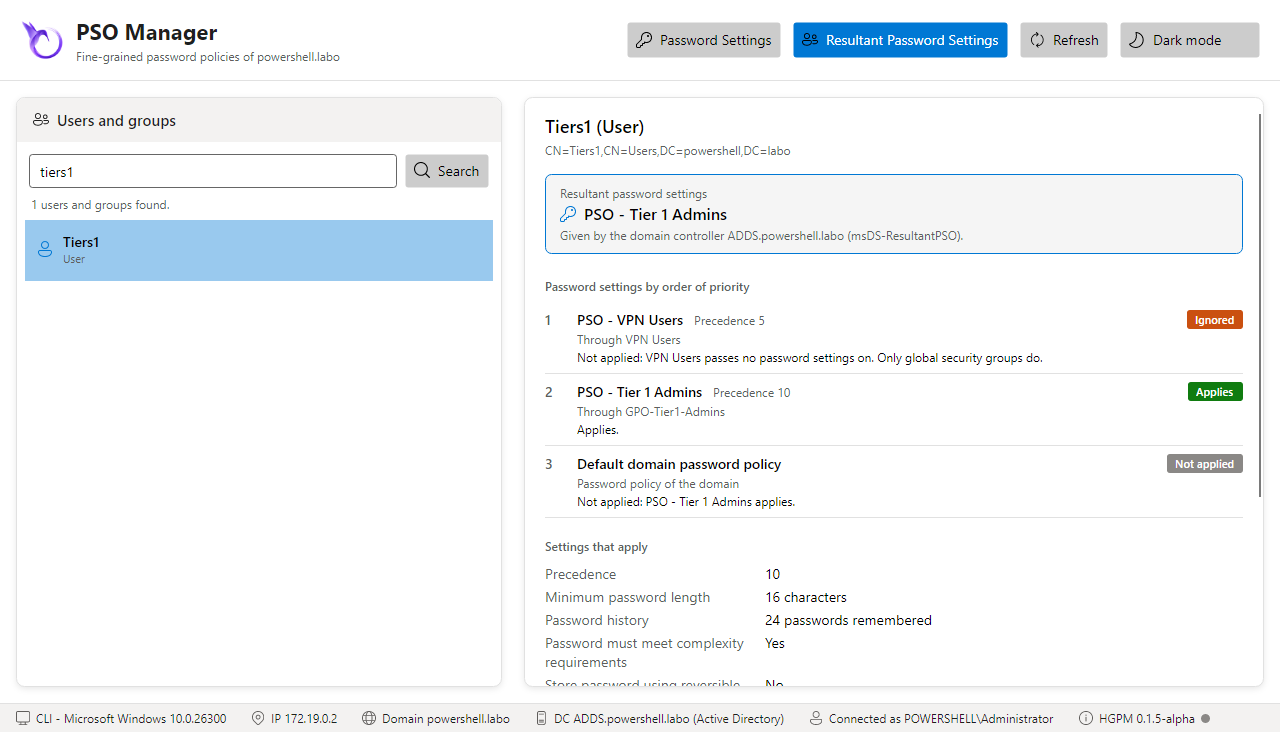
OK checks the settings, creates the PSO and selects it in the list.
3. The other PSOs, from the command line
The same, with the commands of the module:
$Server = 'dc.hardenbox.labo'
New-PSGPOFineGrainedPasswordPolicy -Server $Server -Name 'PSO - Tier 2 Admins' -Precedence 20 `
    -MinPasswordLength 14 -MaxPasswordAge 90.00:00:00 -LockoutThreshold 10 -LockoutDuration 0 `
    -AppliesTo 'GPO-Tier2-Admins' -Description 'Administrators of the workstations (Tier 2)'
New-PSGPOFineGrainedPasswordPolicy -Server $Server -Name 'PSO - Domain Users' -Precedence 50 `
    -MinPasswordLength 12 -PasswordHistoryCount 12 -AppliesTo 'Domain Users' `
    -Description 'Every user of the domain' -ProtectedFromAccidentalDeletion $false
-LockoutDuration 0: locked out until an administrator unlocks the account. Refresh (F5) shows
them in the console, by order of priority:
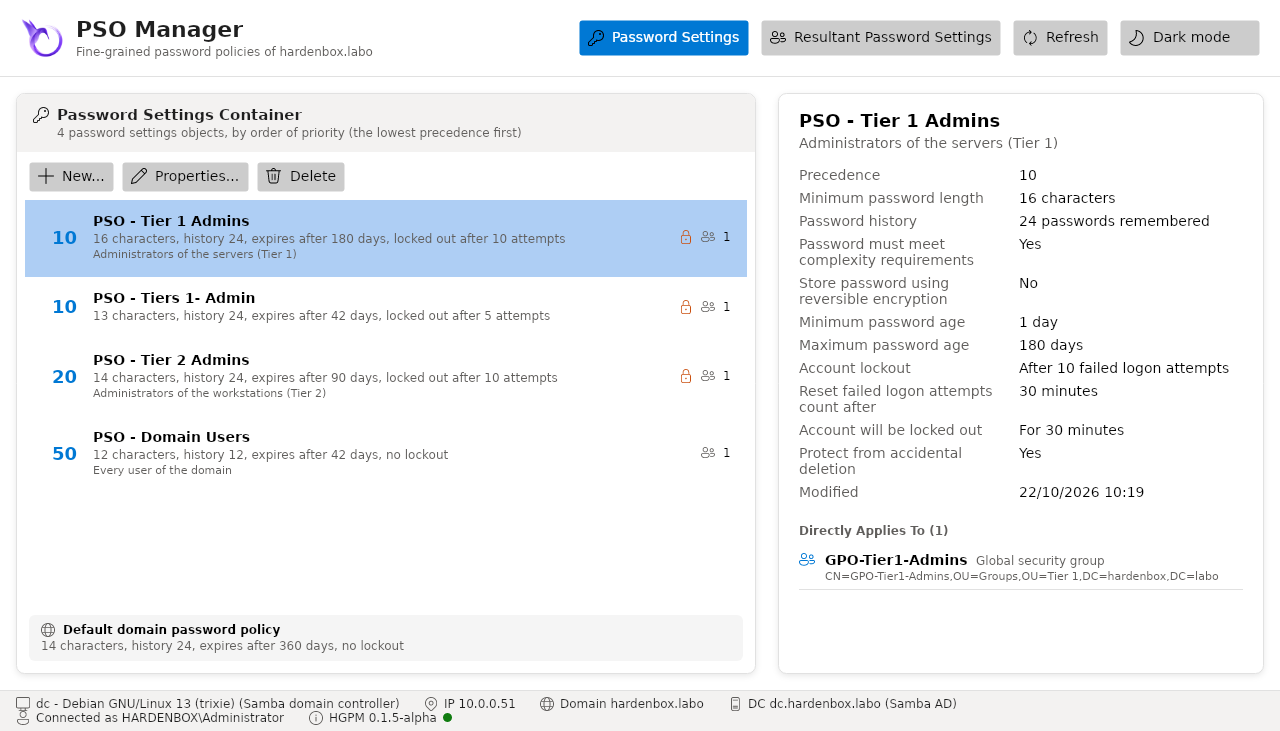
Properties... opens a PSO again; OK without a change changes nothing.
4. Which PSO applies to tiers1?
Resultant Password Settings, search tiers, select Tiers1:
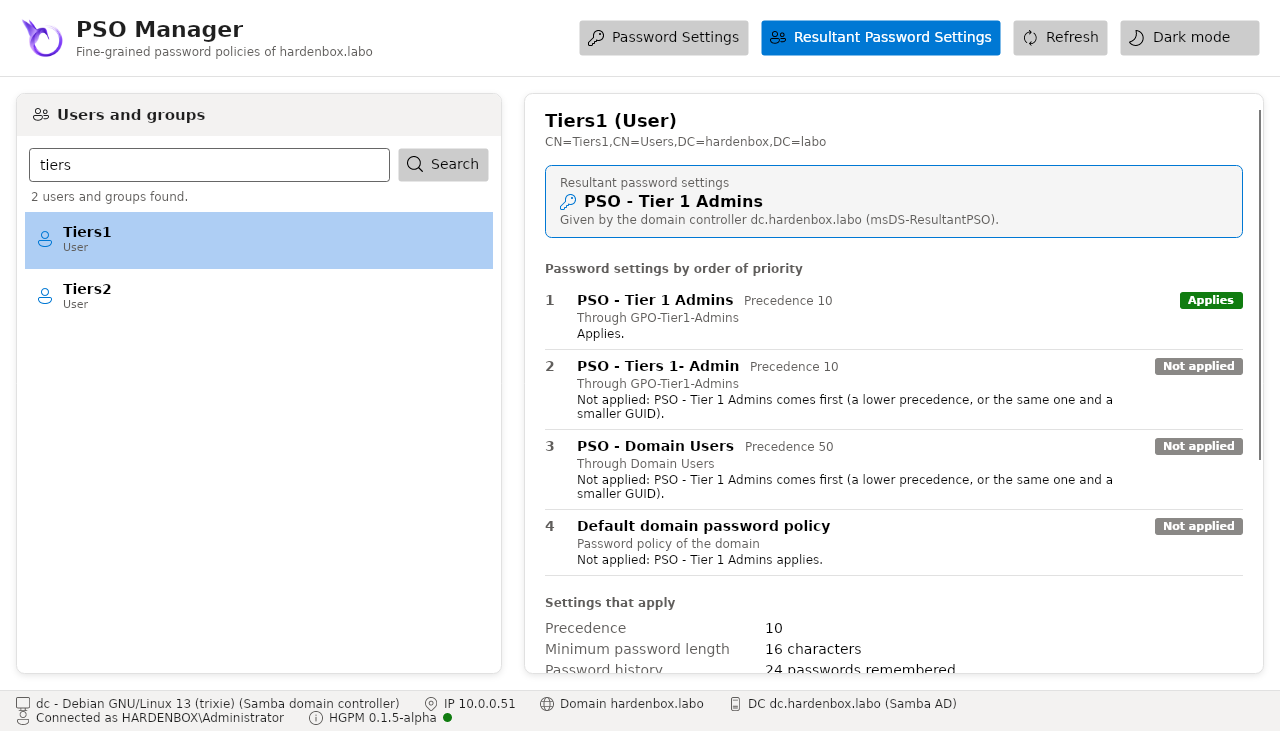
- PSO - Tier 1 Admins applies, through
GPO-Tier1-Admins: precedence 10. - PSO - Domain Users concerns it too, through its primary group, but comes after (precedence 50).
- The default domain password policy does not apply: a PSO does.
The PSO in the frame is the answer of the domain controller (msDS-ResultantPSO); the order of the
list is the one of the rules, and the console says it if they ever differ.
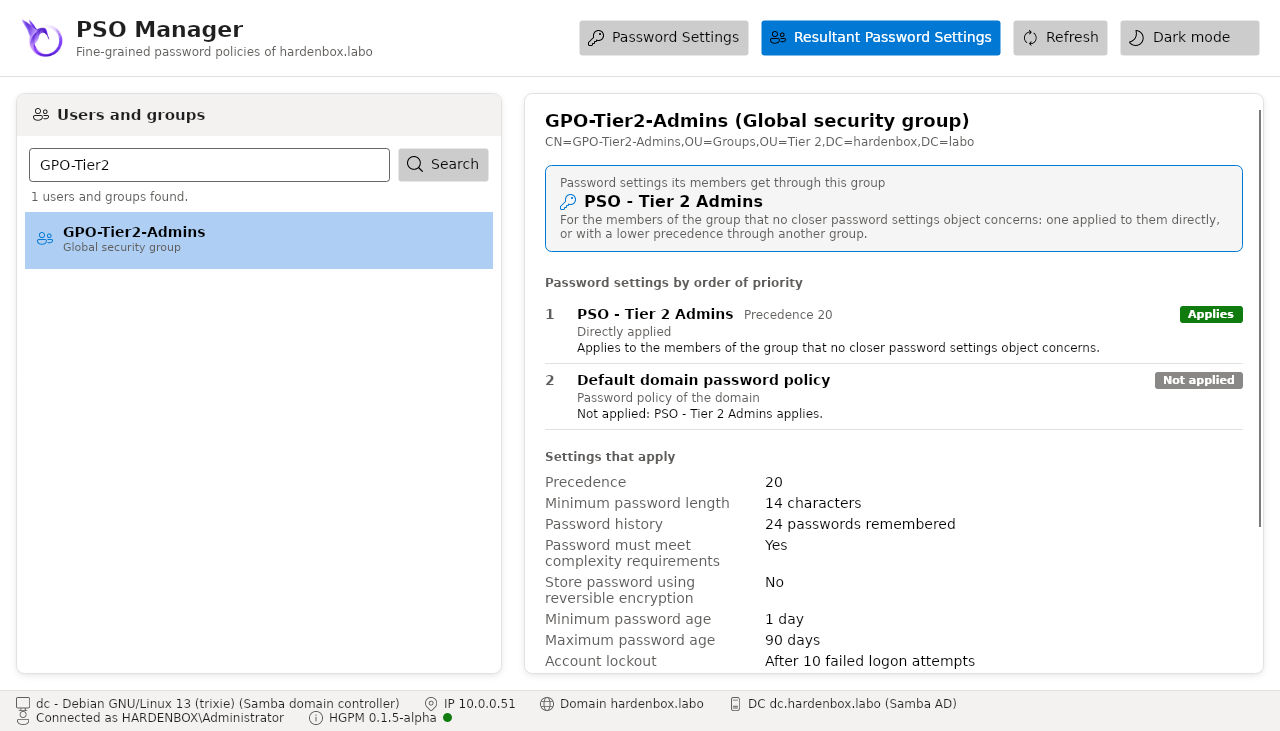
Selected, a group shows what its members get through it:
From the command line:
Get-PSGPOResultantPasswordPolicy -Server dc.hardenbox.labo -Identity tiers1 |
    Select-Object -ExpandProperty Candidates | Format-Table Order, Name, Precedence, AppliesThrough, Status, Reason
5. Change, then delete
Raising the precedence of PSO - Domain Users to 5 would apply it to tiers1 too: the resultant
view shows it at once, before anything else changes in the domain. To delete a PSO, Delete; one
protected from accidental deletion is kept:
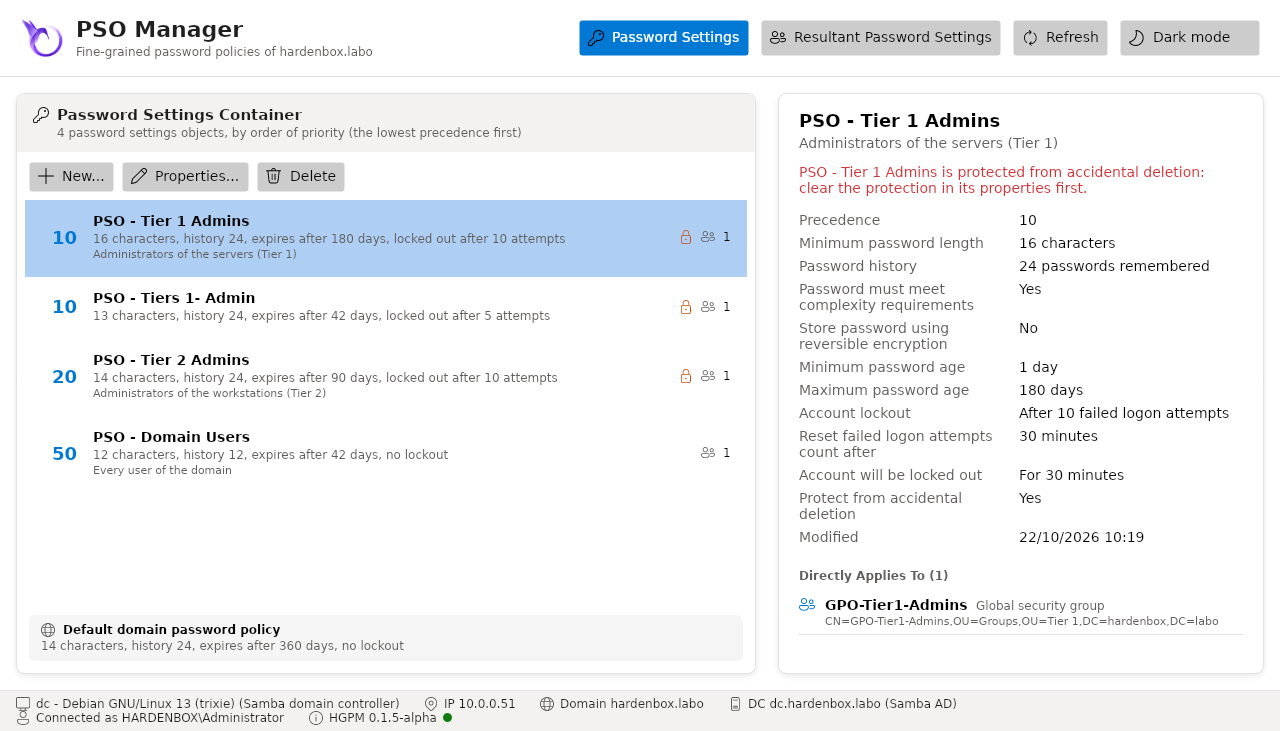
Uncheck Protect from accidental deletion in its properties first, or:
Set-PSGPOFineGrainedPasswordPolicy -Server dc.hardenbox.labo -Name 'PSO - Tier 1 Admins' -ProtectedFromAccidentalDeletion $false
Remove-PSGPOFineGrainedPasswordPolicy -Server dc.hardenbox.labo -Name 'PSO - Tier 1 Admins'
Every change is in the audit log of HGPM: